
Salesforce Lightning Object Manager
Salesforce Lightning Object Manager
 neeraj.sethi@crmlanding.in
 Salesforce Lightning Object Manager?
The Object Manager is the place to go to manage your standard and custom object such as custom fields, page layouts, and validation rules. If an object is included in a managed package or is for Salesforce systems, you may not be able to access those.
Standard objects such as Account or Contact come with all Salesforce organizations. A custom object is something you have created or added to manage additional items.
To open the Object Manager:
- Click on the Gear Icon at the top of the page and choose Setup.
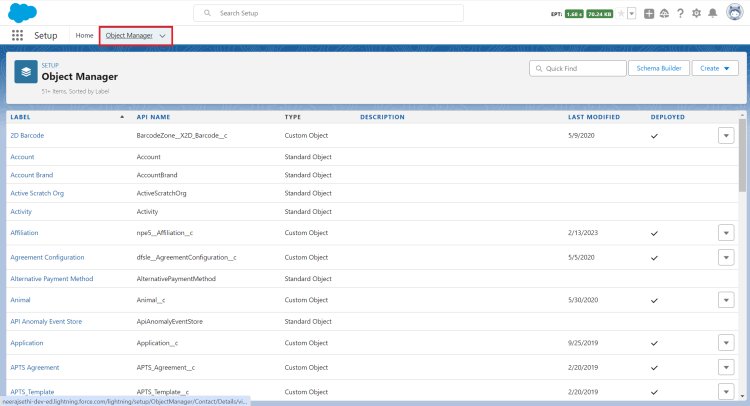
- Click on the Object Manager, To customize an object, select the object name in the list
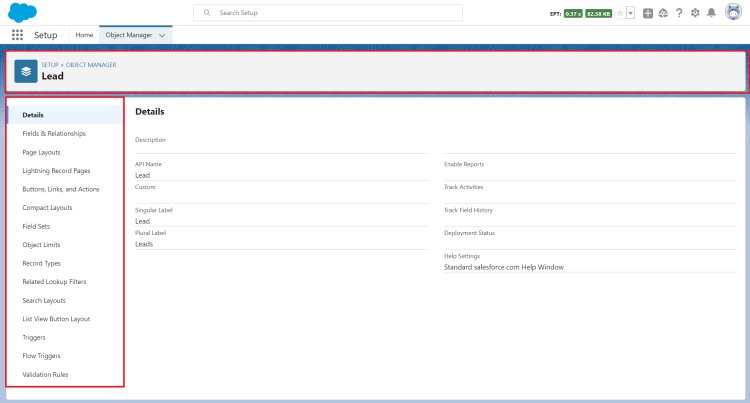
- Select a specific customization from the left pane
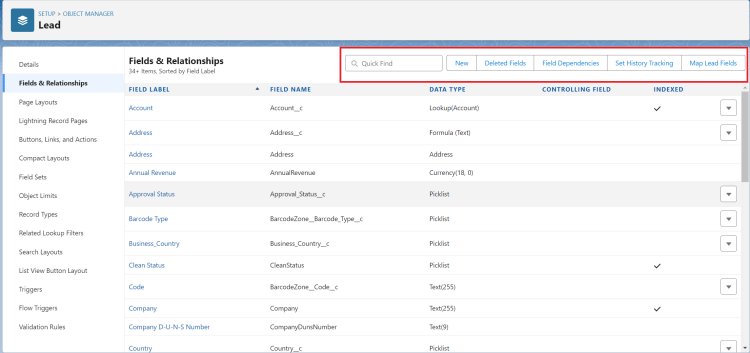
To manage a field in the object:
- Click on Fields & Relationships. To see all custom & standard fields of that Object.
- Click the New button to create a new field.
- Click on the Field Name to open its properties and make changes.
- To remove the field, select Delete from the drop-down at the end of the line.
We can't delete an standard field.
To manage how the fields are displayed on the screen:
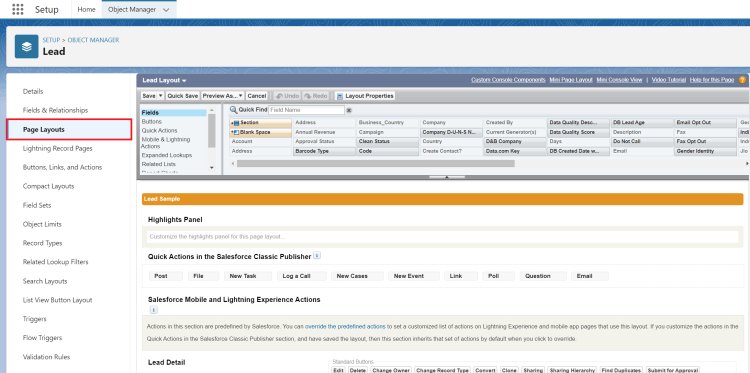
- Page Layout: Salesforce page layouts determine which fields are displayed to your users on a record. They allow you to add fields, sections, links, custom buttons, and a few other features. Record types let you offer different business processes, picklist values, and page layouts to different users.
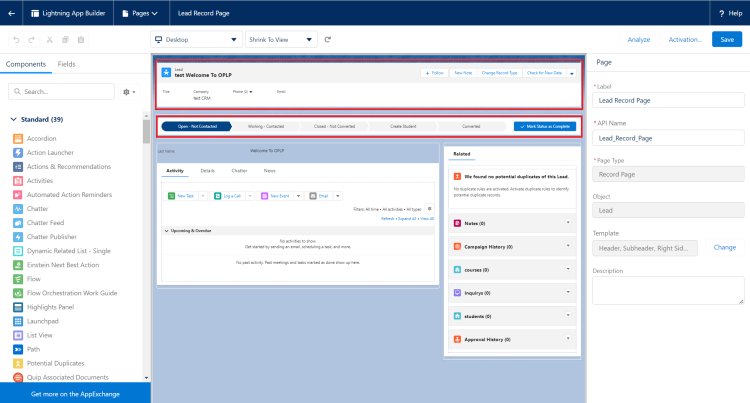
- Lightning Record Page: Complete control over the structure of the entire page itself, allowing for up to three columns, sidebars, headers, pinned or not pinned, and more. Within the structure of your given page, you can control everything.
- Button, Links & Action: Standard functionality available in all orgs, and can be easily customized by an admin without any code. In general, buttons, links, and actions can be added to Salesforce (usually to a record) to do something. What they do depends on which feature you choose, and how you set it up.
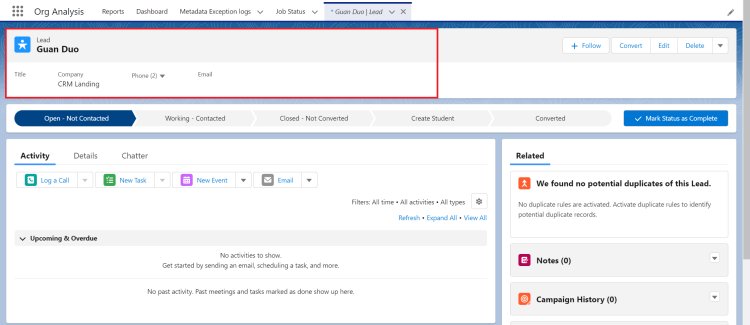
- Compact Layout: Display a record's key fields at a glance in both Salesforce1 and Lightning Experience. In the full Salesforce site, a compact layout determines which fields appear in the Chatter feed item that appears after a user creates a record with a quick action.
- Field Sets: Used to group the fields of an object. We can use this in the Visualforce page and Apex class. Dynamically, we can add, remove, and reorder the fields without modifying the code in the VF Page using Field Set.
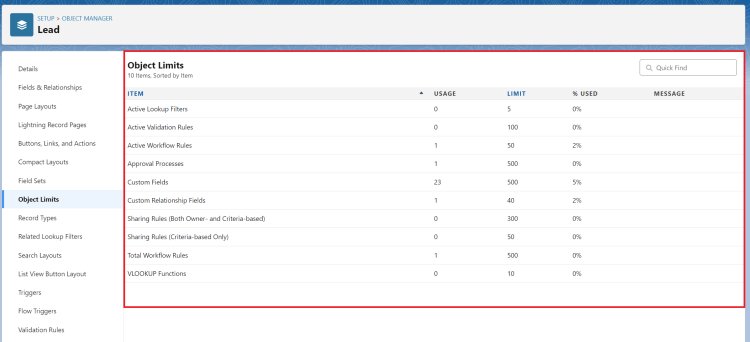
- Object Limit:
- Record Type: Are a way of grouping many records of one type for that object. These can be applied to any standard or custom object, and allow you to have a different page layout, fields, required fields, and picklist values.
- Search Layout: Determine what users see when search returns results. You can create search layouts for standard and custom objects, ensuring the layout shows users what's most relevant to them.
- List View Button Layout: Allows us to add and remove action buttons that users see on all the list views for a given object.
- Trigger: Are stored as metadata in the application under the object with which they are associated. You can add, edit, or delete Apex using the Salesforce user interface only in a Developer Edition organization, a Salesforce Enterprise Edition trial organization, or sandbox organization.
- Flow Trigger: Can be a schedule or the new and changed records of a specified object. Without a trigger, you must set up other things to launch the flow, such as custom buttons, processes, Apex classes, or even Einstein Bots.
- Validation Rules: A validation rule triggers every single time there's an attempt to save the record in Salesforce clouds. The required conditions of the validation rule are indicated in the formulas. They contain one or more criteria to meet in order to pass validation and save the record.
Useful Links:
https://help.salesforce.com/s/articleView?id=sf.extend_click_find_objectmgmt_lex.htm&type=5
https://help.salesforce.com/s/articleView?id=sf.dev_objectedit.htm&type=5